The Dashboard
The Dashboard is your home base. Every project you have ever built lives here, along with quick access to your libraries, an optional look at what is coming up in the next 10 days, and the button that starts everything new.

Top Navigation Bar
The bar across the top stays with you on every page of GrimFolio.
| Element | What it does |
|---|---|
| GrimFolio | The wordmark on the far left. Not a button. Just a reminder of where you are. |
| Plan badge | A small pill showing your current tier: Free, Unlimited, Pro, or Studio. Color changes with your plan. |
| Upgrade to Pro | Appears only on Free and Unlimited accounts. Clicking it starts the upgrade flow. Disappears once you are on Pro or Studio. |
| Inventory (crate icon) | Opens your global Inventory as a panel overlay without leaving the dashboard. On mobile, access Inventory from inside a project instead. |
| Notifications (bell icon) | Opens the notifications panel showing recent assignment and @mention alerts. A red badge appears when there are unread notifications. |
| Help (? icon) | Opens the Help panel for whichever page you are on. |
| Account button | Your display name on desktop, your initial in a circle on mobile. Opens Account Settings. |
| Sign Out | Ends your session. Text on desktop, an exit arrow icon on mobile. |
Welcome Header
If you have set a display name in Account Settings, the dashboard greets you by name with your email shown underneath. If you have not, it just says Projects — which is equally accurate.
Your Projects
Projects are displayed in a responsive grid. The New Project card is always the first card in the grid — dashed border, a +, and the label "New Project." It never moves. Everything else sorts by last edited.
On desktop, a gradient fade and a down arrow appear at the bottom of the projects column when there are more projects below the fold.
Project Cards
Each card shows everything you need to know about a project at a glance.
| Element | What it shows |
|---|---|
| Title | The project name. Click anywhere on the card to open it. |
| Stage pill | Which stage the project is in — amber for The Pile, blue for Build, green for Production. |
| Card count | How many cards exist in the project. |
| Template type | The template selected at creation — Haunted House, D&D 5e, Film, etc. |
| Edited X ago | How long since the project was last changed. |
| Collaborator badge | Editor or Viewer — only visible on projects you were invited to, not your own. |
Project Options
Hover a card to reveal the ··· button in the top-right corner. Click it or right-click anywhere on the card to open the options menu.
Rename — Replaces the card title with an inline text input. Press Enter or click away to save. Press Escape to cancel.
Delete — Triggers a confirmation overlay directly on the card: "Delete this project? This cannot be undone." The project is not deleted until you confirm.
On projects you have been invited to as a collaborator, the menu shows View only instead — no rename or delete available.
Search
The search bar appears above the project grid as soon as you have at least one project. It searches both your projects and every card inside them.
Project Search
GrimFolio searches three things simultaneously — project title, template type, and Grim's project summary. Matching project cards are highlighted with a purple border. Non-matching cards drop to low opacity. Hovering a matching project card shows a tooltip with exactly where the match was found: "Title: The Ritual", "Template: Haunted House", or a short excerpt from the Grim summary.
Card Search
As soon as you have typed two or more characters, a dropdown appears below the search bar showing cards from across all your projects that match the query. Results are grouped by project with a purple project header, and each result shows the card type, title, and a short excerpt from the card's notes if one exists.
Click any card result to navigate directly to that project and open the card detail drawer automatically. You do not need to know which project the card lives in.
The × button inside the bar clears the search and closes the dropdown instantly. Pressing Escape does the same.
Creating a Project
Click the New Project card to open the Create Project modal.

Project title — Give your project a name. This is the only required field.
Template — Templates set the default card types available in your project. They are a starting point, not a constraint — you can customize card types at any time inside the project.
Standard templates: Blank, Haunted House, Escape Room, Theater, Event Planning, Film, Cosplay, Creative Writing, General.
Click Show TTRPG templates to reveal a second group: D&D 5e, Pathfinder 2e, Dragonbane, Dungeon World, Monster of the Week, PbtA (Other), Blades in the Dark, OSR / Old School, Vampire: The Masquerade, Call of Cthulhu, and FATE.
Start Grim with a reference document (optional) — If you have uploaded documents to Reference Documents, you can link one here before the project opens. Grim walks into your first conversation already knowing what is in that file. Documents are grouped by folder — click a folder to expand it, click a document to select it.
Click Create to build the project and open it immediately.
Libraries
The right column of the dashboard holds five entry-point cards — your global libraries and tools that exist across all projects.
| Library | What it holds |
|---|---|
| Inventory | Props, materials, gear, and consumables tracked across all projects. |
| Inspiration Library | Reference images, mood board pulls, and concept art linked to cards. |
| GrimVision Library | AI-generated concept art from GrimVision, browsable and downloadable. |
| Reference Documents | Scripts, lore bibles, floor plans, and any document you want Grim to read. |
| Data and Import | Export your data or import from another tool. Coming soon. |
Next 10 Days
The Next 10 Days panel gives you a rolling look at what is coming up across all your projects — deadlines, build days, rehearsals, deliveries, anything added to a project's calendar.
It is optional. Turn it on or off in Account Settings → Project Defaults under "Show upcoming events on dashboard."
When enabled it appears below the main two-column layout. Events are displayed chronologically showing the event name, type, date, and which project it belongs to.
Adding an Event from the Dashboard
Click + Add Event to open the Add Event modal.
| Field | Notes |
|---|---|
| Project | Which project this event belongs to. |
| Event title | What the event is called. |
| Event type | Rehearsal, Performance, Meeting, Inspection, Delivery, Deadline, Build Day, or Custom. |
| Date | Required. |
| Time | Optional. Auto-fills to the current hour when you click into it. |
All Projects Board
The All Projects Board gives you a cross-project Kanban view of every card across all your projects at once. It is the fastest way to see what is in progress, what is blocked, and what is done without opening individual projects one by one.
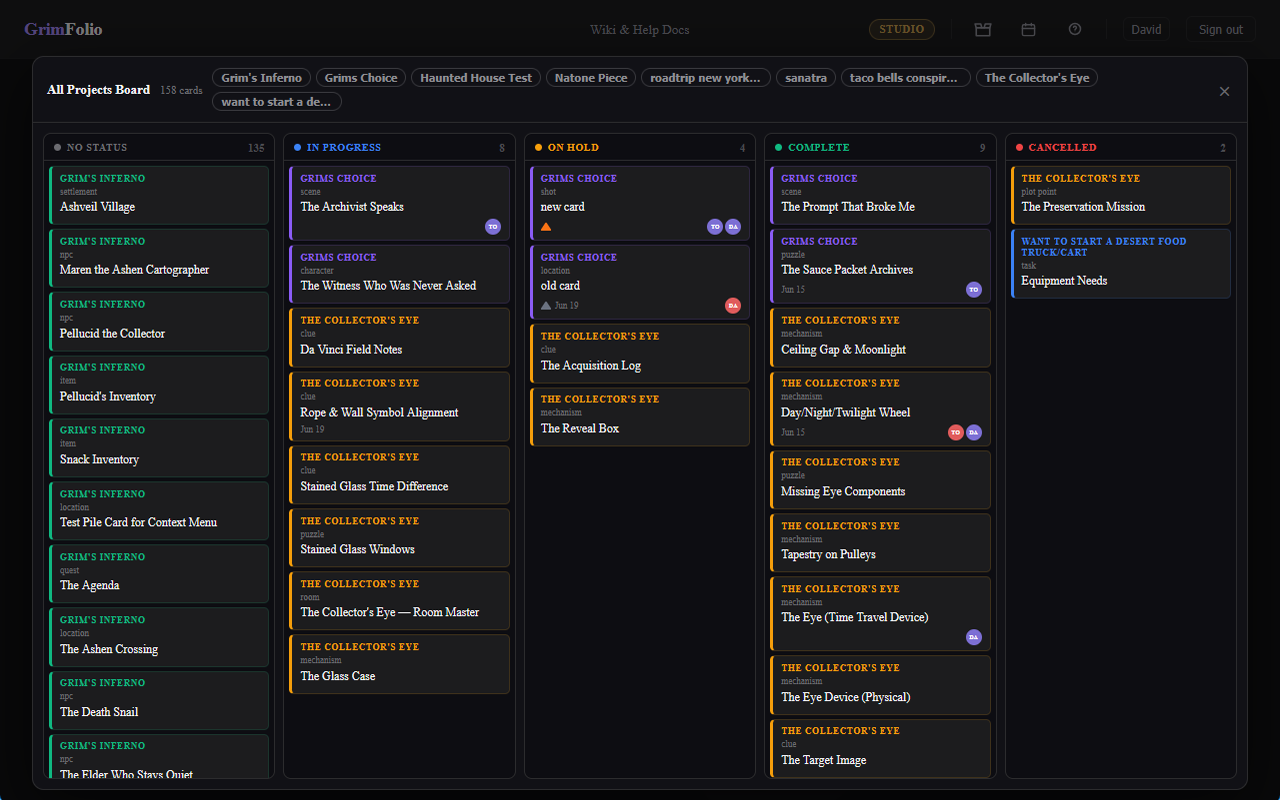
Project name tabs appear across the top of the board. Click a tab to filter the view to that project only. Click All to return to the combined view. Cards are organized into columns by status — Not Started, In Progress, Complete, On Hold, and Archived. Each card shows its title, type, and which project it belongs to.